Explainer
Why is my iPhone not charging?
The common iPhone charging issues, and the fix for each, easiest first. Whether your iPhone won’t charge, your iPhone is not charging at all, or it stops at 80 percent, start here. Works for every iPhone from the Lightning models to the iPhone 15 and 16 USB-C range.
Short answer
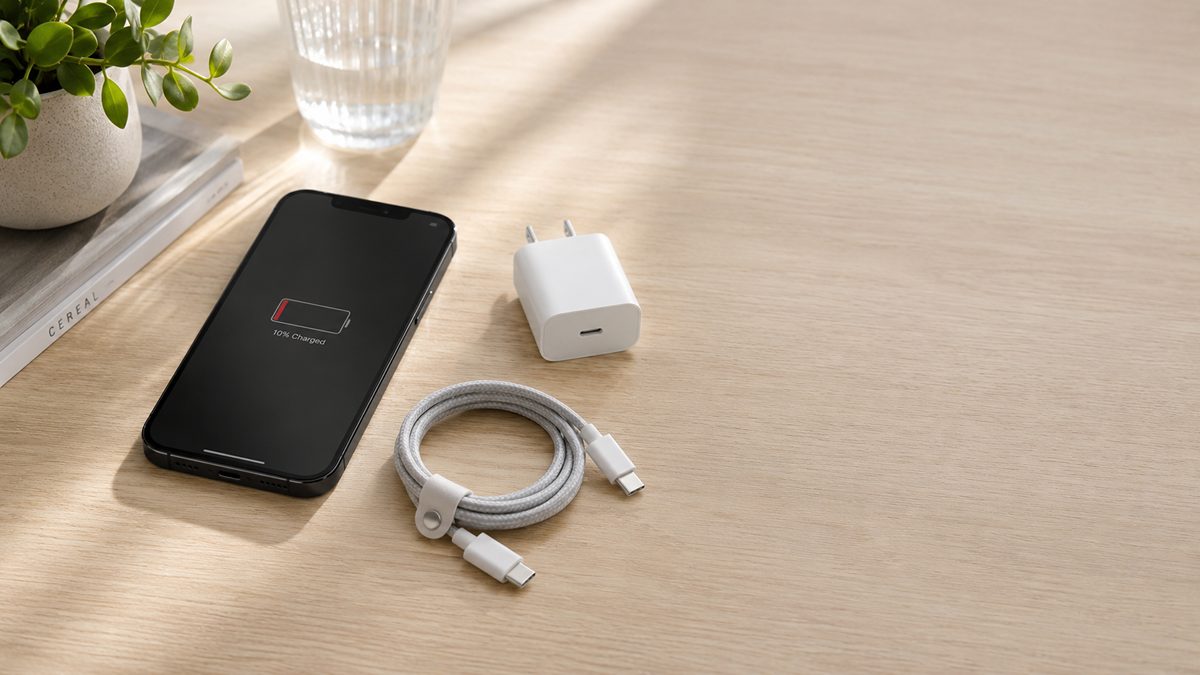
Start with the charging port. A speck of lint is the most common reason an iPhone stops charging.
Plug into a wall outlet, swap to a cable you know works, and clear any lint from the port with a wooden or plastic toothpick. Then give it 30 minutes. Most iPhone charging issues clear at this stage. Still stuck? Work through the fixes below, or tap your symptom in the finder.
- Wall outlet first: a laptop port, car USB socket or cheap hub is often too weak to revive a flat iPhone
- Swap the cable: Lightning and USB-C cables fail from the inside, and the damage is usually invisible
- Stops at 80 percent? That is usually Optimized Battery Charging, not a fault
Facts checked 24 August 2026 against Apple Support. How we test and score ›
What is really going on
The four causes that matter
Everything below unpacks these. If you only remember four things, make it these four.
Step by step
How do I fix an iPhone that is not charging?
Ten fixes, easiest and most likely first. Start at the top and stop the moment it charges again.
iPhones share the same troubleshooting order whether yours uses Lightning or USB-C. The menus are the same from iOS 16 onward, and the underlying causes have not changed for years.
First, rule out the obvious
Plug straight into a wall outlet, reseat the cable at both ends, and give it 30 minutes before you worry. A laptop USB port, a car socket or a cheap hub often cannot supply enough power, so go straight to the wall, and try a second outlet in case the first is dead.
Apple’s first recommendation is to check the cable, adapter and outlet, and to test with another cable or adapter if you have one. Then watch the status bar, because sometimes it is charging slowly and you could not tell.
Check and clean the charging port
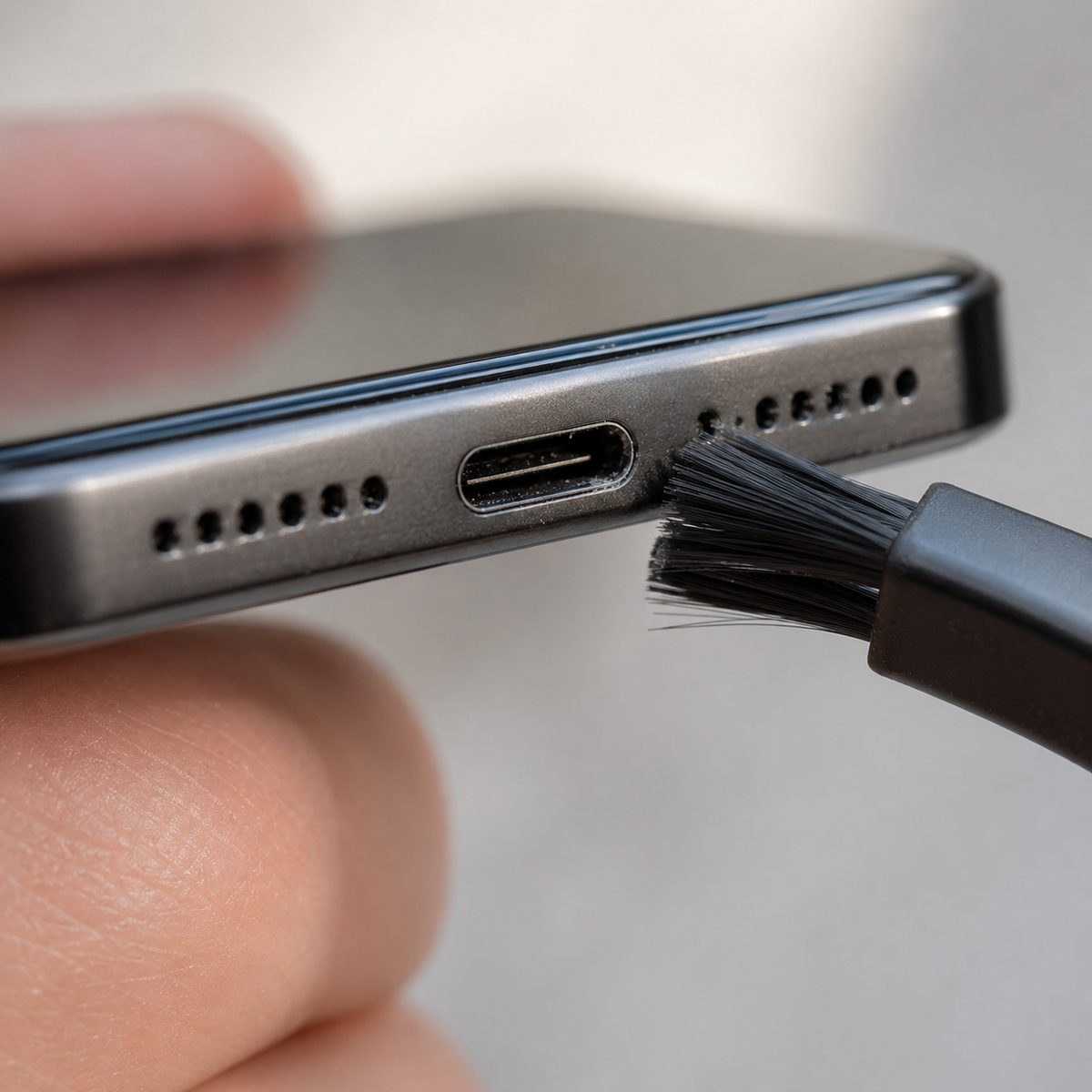
Lint packed into the Lightning or USB-C port is the single most common reason an iPhone stops charging. Pockets and bags work fluff deep into the port, and once it compacts the cable cannot make proper contact.
Apple says to remove any debris from the charging port and to avoid metal or compressed air. The safe way is to power the iPhone off, then lift the lint out with a dry soft brush or a wooden or plastic toothpick. Never use a metal pin, compressed air or any liquid. If the port is loose, corroded or visibly damaged, stop and get it looked at.
 Darleene asks
“My iPhone only charges when the cable sits at an angle. Have I broken it?”
Alisdair: Almost certainly not. Needing an angle usually means pocket lint has packed into the port, so the cable cannot seat fully.
Power the iPhone off and lift the lint out with a dry soft brush or a wooden toothpick, never anything metal.
If it still needs the angle with a cable you know is good, the port itself is worn, and that is a repair quote rather than a new phone.
Try a different cable
Swap to a cable you know is good, because a frayed, kinked or cheap charge-only cable is one of the most frequent causes and the easiest to overlook. Cables fail from the inside, usually near the connector where they bend most, so the damage is often invisible.
Apple recommends trying a different cable and adapter if the iPhone will not charge. If a known-good cable brings your iPhone back, the old one is done.
If yours turns out to be the culprit, our roundup of the best USB-C cables covers ones built to last, and the best USB-C cable for iPhone guide pairs the right cable to modern iPhones.
Use a proper charger
A tiny 5W plug, a laptop port or a powered hub may be too weak, so use a proper USB-C wall charger. Modern iPhones fast-charge from USB-C Power Delivery, and a real wall charger gives a clean, adequate supply.
If you have been topping up from a laptop or an old 5W plug, a decent wall charger often fixes it outright. A good GaN charger is small, runs cool, and has the headroom to charge at full speed.
Restart, then force restart
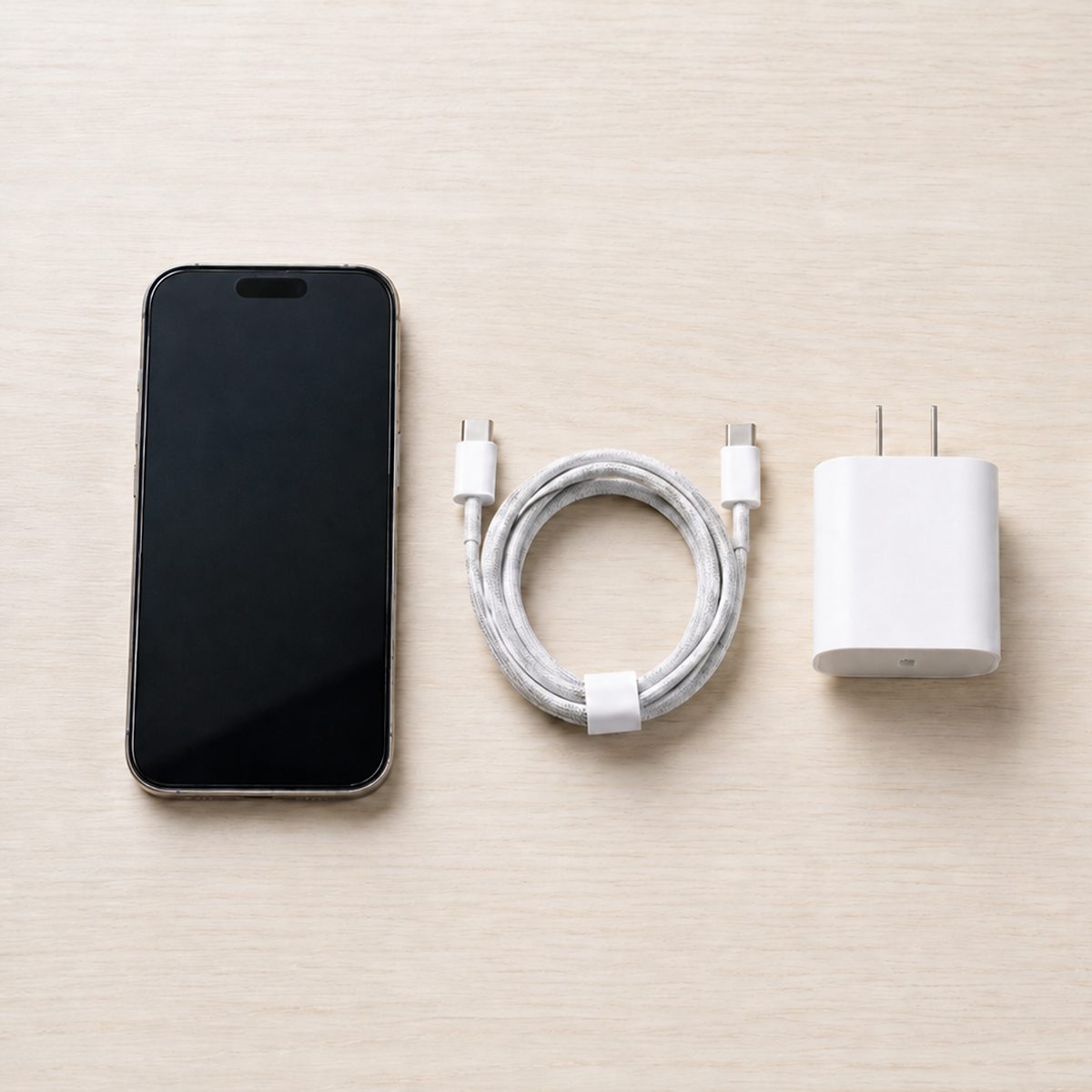
A software hang can stop charging dead, so restart, then force restart. A normal restart clears most glitches.
If the screen is frozen, Apple’s force-restart steps depend on the iPhone model: press and quickly release Volume Up, press and quickly release Volume Down, then press and hold the Side button until the Apple logo appears on Face ID models. On older models with a Home button, press and hold the Home and Sleep/Wake buttons together.
Once it is back, install any pending iOS update, since charging fixes ship in them.
It stops at 80 percent? That can be normal
If the iPhone charges fine to about 80 percent and then crawls, that is usually Optimized Battery Charging, not a fault. Apple designed the feature to learn your daily charging routine and pause at 80 percent, finishing the last 20 percent just before you usually unplug.
If you need a full charge right now, you can temporarily turn it off. Go to Settings, Battery, Battery Health & Charging, and toggle Optimized Battery Charging. The setting will turn itself back on later if you do not change it.
Check the battery health
If the iPhone is a few years old, drains quickly and charges oddly, the battery itself may be worn.
Apple’s battery-health guidance says to check Settings, Battery, Battery Health & Charging. Maximum Capacity below about 80 percent means the battery can no longer deliver peak performance, and a service or replacement restores the runtime. A swollen battery is a fire risk, so stop using the iPhone and get it serviced.
MagSafe or wireless charging not working
Line the charger up centrally, plug the pad into power before you place the iPhone, and take off any thick or metal case. Apple says MagSafe and Qi chargers are easily interrupted by poor placement or a foreign object. A magnet, a metal ring, a card holder or a thick case between the iPhone and the pad will block or slow it.
Liquid detected, or a water warning
A liquid-detection alert means the iPhone has paused charging on purpose to protect the port, and that is a safety stop, not a fault. Apple’s guidance says to unplug, gently tap the iPhone with the connector facing down to remove excess liquid, and leave it somewhere airy before trying again.
Do not force wired charging while the warning is up, and skip the rice and the hairdryer. Retry once the port is dry, and allow up to a day. A wireless charger still works once the back is dry.
Accessory not supported
If the iPhone says “This accessory may not be supported,” the cable, adapter or dock is either damaged, dirty or not MFi-certified. Apple’s support page says to disconnect, inspect the connector for damage or debris, and try a different cable or adapter.
Third-party Lightning cables that are not MFi-certified can trigger this alert even when they look fine. A known-good Apple or certified cable usually clears it.
When to get it serviced
If you have worked through everything above and it still will not charge, the port or the battery may have failed, and that is a repair job. A physically damaged or corroded port, or a swollen battery, needs proper service.
Contact Apple or an authorised provider, and back up your data first if the iPhone still powers on.
Stop using an iPhone with a swollen or hot battery. A swollen battery is a fire risk, not an inconvenience. Power the iPhone down, do not charge it again, and take it for proper service.
Reading this with an Android phone in your hand? The causes overlap, but the steps and settings differ.
See the Android not charging guide ›Wall outlet, good cable, clean port, then 30 minutes of patience. Most iPhones are charging again before the list runs out.
The cable changed
Which cable does my iPhone need now?
Every iPhone from the 15 onwards charges through USB-C, not Lightning. That changes which cable and charger you reach for.
USB-C iPhones use the same Power Delivery chargers and cables as iPads and most laptops, so one good charger can cover several devices. The phone still negotiates its own speed, so a bigger charger does not force the iPhone to charge faster; it just leaves headroom for the rest of your kit.
If you are unsure whether your cable is the problem, our USB-C cables explained guide walks through what to look for, and the best USB-C cable for iPhone roundup lists cables we have checked.
Find your fix
Why is my iPhone not charging? Find your fix
Tap the symptom that matches and get the fix. No app, no waiting.
What is it doing?
Start here
Work the basics, then the cable
Plug into a wall outlet (not a laptop or hub), reseat the cable at both ends, and clear any lint from the port. If a cable you know is good revives it, the old one is done.
See the best USB-C cables →Start here
Use a proper charger
A 5W plug or a laptop port is often too weak. A real USB-C Power Delivery wall charger fixes most slow charging.
See the best GaN chargers →Start here
Switch the charger and ease off
If it shows charging but the percent does not climb, the charger or cable can barely keep up, especially while you use the phone. Use a stronger charger and a good cable, close heavy apps, and restart. A dirty or wet port can fake a connection too.
See the best GaN chargers →Start here
Check the cable and adapter
An unsupported accessory alert usually means a damaged, dirty or uncertified cable. Inspect the connector, clear any debris, and try a known-good MFi or Apple cable.
See the best iPhone USB-C cables →Start here
Clean the charging port
If it only charges at an angle, the port is the suspect: lint inside or a worn cable connector. Clear the port gently, then try a known-good cable.
See the best USB-C cables →Start here
Fix the alignment
Plug the pad into power first, center the iPhone on it, and take off any thick or metal case, a magnet ring or a card holder. A foreign object or poor placement is the usual culprit.
Important
Dry it before you charge
A liquid-detection alert means moisture in the port, and the iPhone has paused charging to protect it. Unplug, dry the iPhone with the port facing down somewhere airy, and retry after 30 minutes, allowing up to a day. No rice, no hairdryer. A wireless charger still works once the back is dry.
Good news
That is usually Optimized Battery Charging
Many iPhones pause at 80 percent on purpose to ease battery wear. You can turn it off for one charge in Settings, Battery, Battery Health & Charging.
Start here
Check your battery health
If the iPhone is a few years old, drains quickly and charges oddly, the battery may be worn. Check Settings, Battery, Battery Health & Charging, and if Maximum Capacity is below about 80 percent, a service or replacement restores the runtime.
Start here
Clear the software hiccup
Updates can leave a glitch. Restart, then force restart (Volume Up, Volume Down, then hold the Side button until the Apple logo appears), and install any newer iOS update.
Start here
Let it cool down
A hot iPhone pauses charging by design. Move it out of the sun or a hot car and off heavy apps, then try again at room temperature.
Tap a symptom to see the fix. No app, no waiting.
Habits
Do this, not that
The habits that keep an iPhone charging reliably, and the shortcuts that break one.
Do
- Charge from a wall outlet, not a laptop port or a cheap hub
- Keep one cable you trust, and retire it at the first fray or kink
- Clean the port gently with a dry soft brush or a wooden toothpick
- Dry a wet port with the iPhone port-down somewhere airy
- Install iOS updates; charging fixes ship in them
Don’t
- Poke the port with a metal pin or blast it with compressed air
- Force charging while a liquid-detection alert is showing
- Put a wet iPhone in rice or under a hairdryer
- Leave the iPhone charging in a hot car or direct sun
- Keep using an iPhone whose battery is swollen or hot
Keep reading
Where this page’s readers usually go next
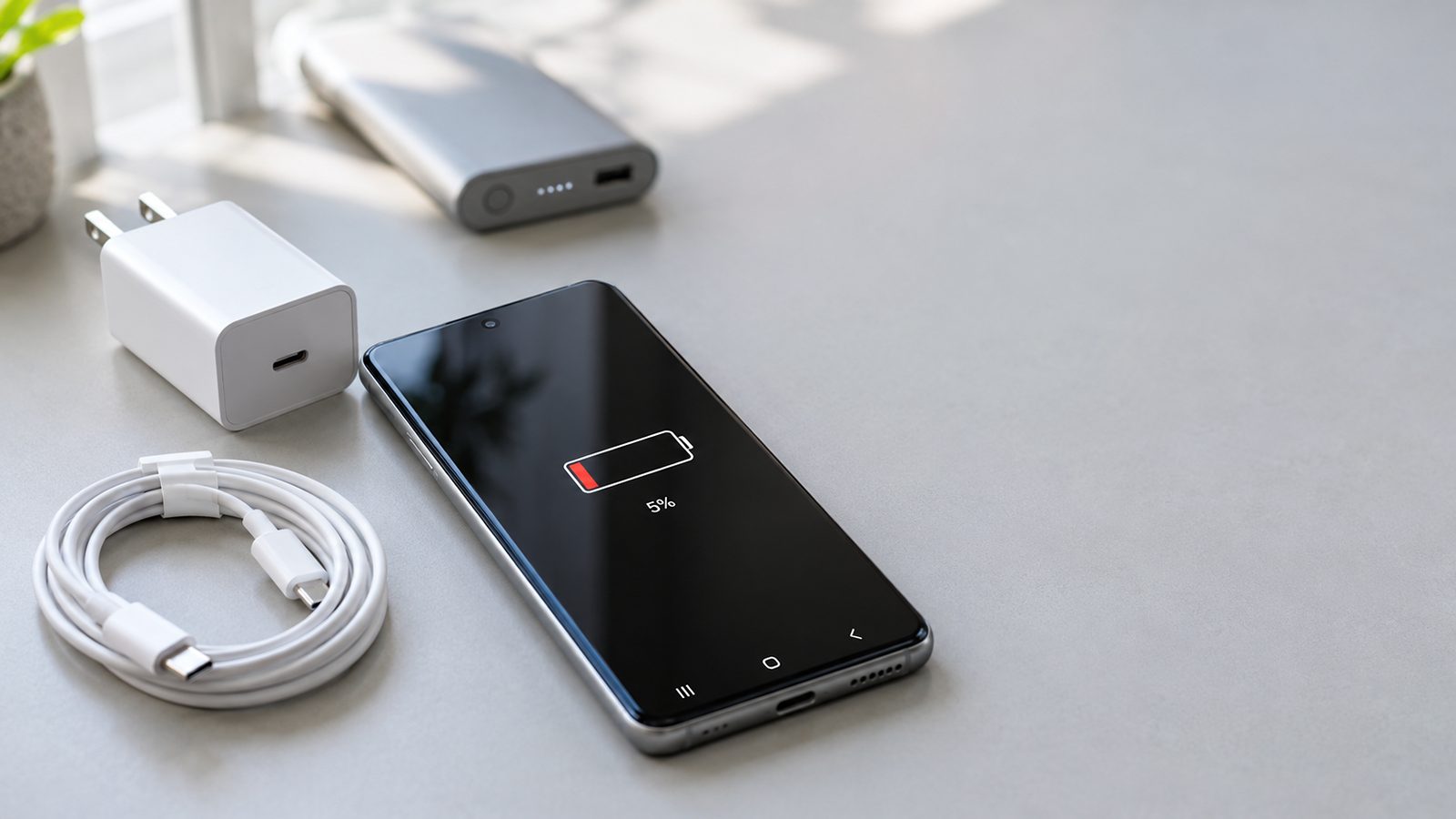
Why is my phone not charging?
The same troubleshooting order for Android, Samsung Galaxy and any USB-C phone.
Read the Android guide ›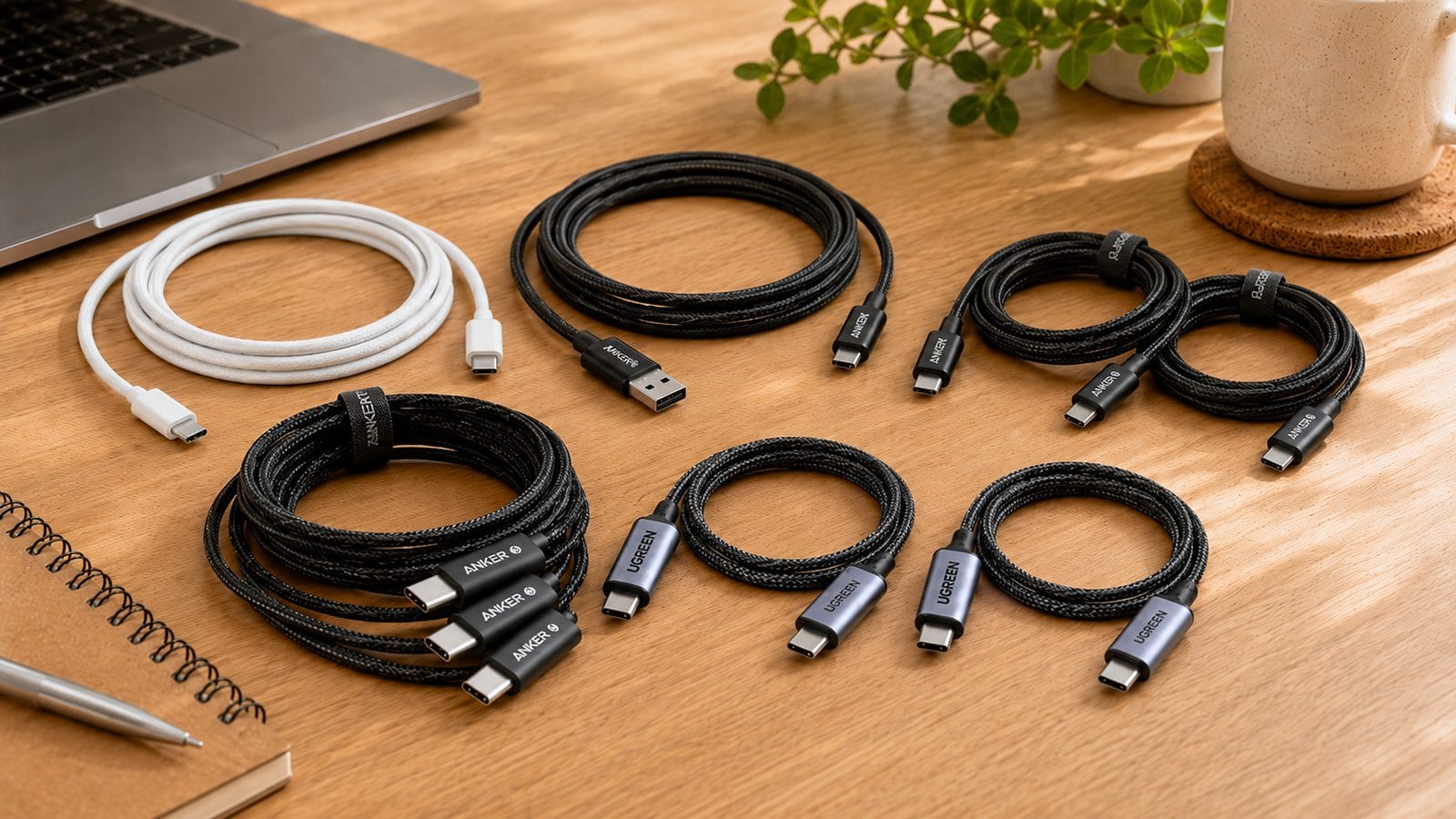
Best USB-C cable for iPhone
The cables we recommend for iPhone 15 and 16, tested and ranked.
See the picks ›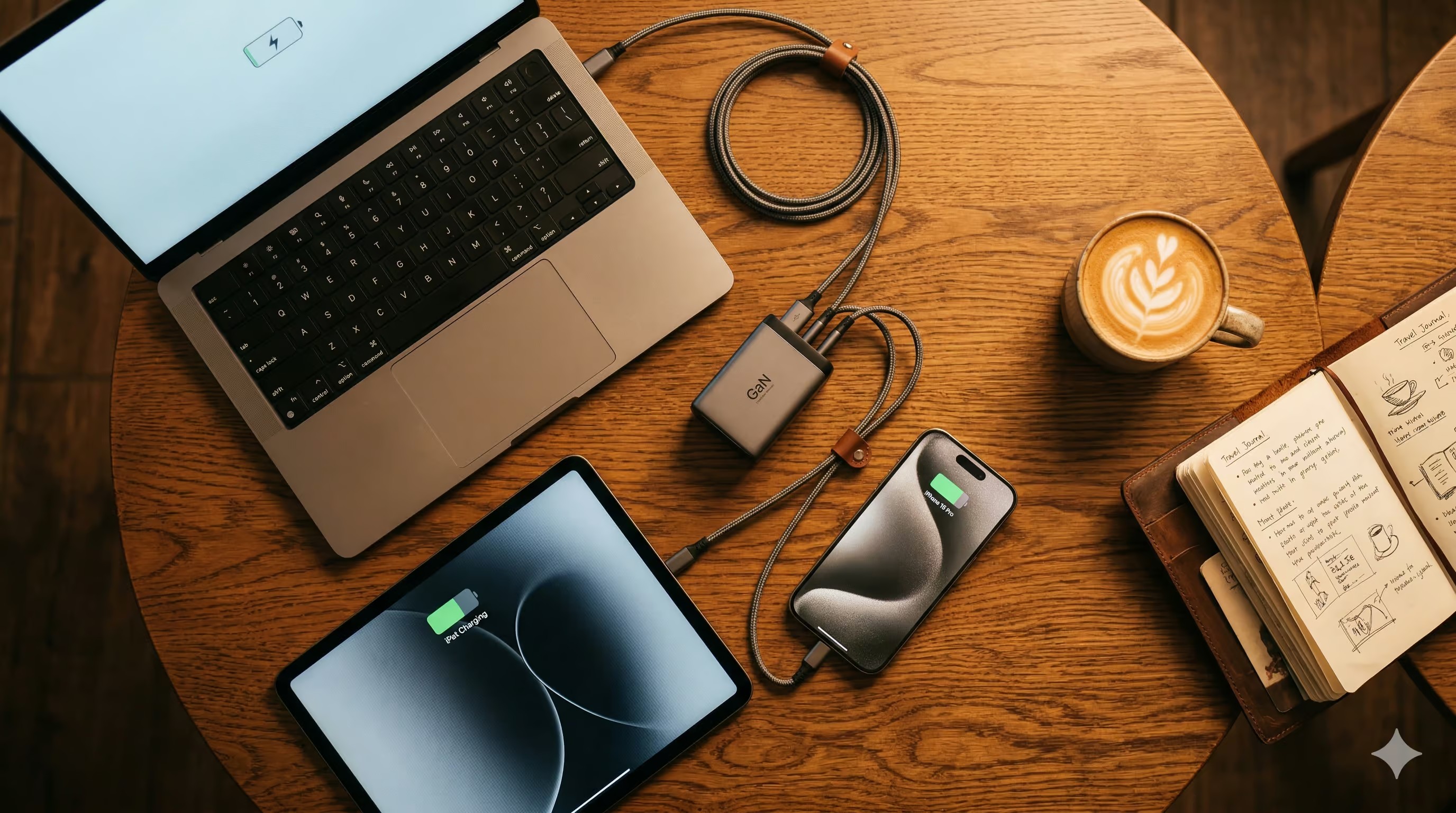
Best GaN charger
Small, cool chargers with enough headroom for an iPhone and more.
See the picks ›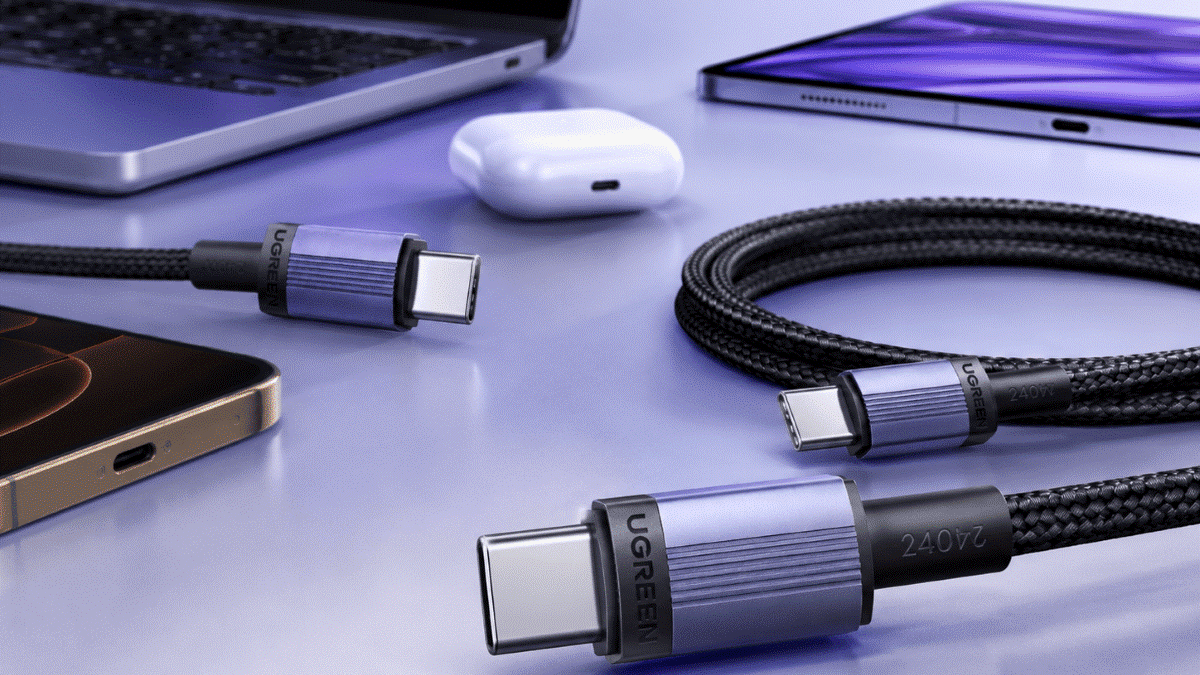
USB-C cables explained
What the different USB-C cable types mean and which one your iPhone needs.
Read the explainer ›Want to get ahead of the next problem? Browse all our charging guides and fixes.
Steps on this page follow Apple Support guidance, linked where each is first mentioned. See how we test and score.
Quick answers
iPhone not charging: your questions, answered
The questions readers ask most, with the direct answer first.
Why is my iPhone not charging when plugged in?
The most common cause is lint in the charging port, followed by a worn cable or a weak charger. Start by cleaning the port, swapping to a cable you know works, and plugging into a wall outlet for 30 minutes.
Why does my iPhone stop charging at 80 percent?
That is usually Optimized Battery Charging. The iPhone learns your routine and pauses at 80 percent, finishing the charge just before you usually unplug. You can turn it off for one charge in Settings, Battery, Battery Health & Charging.
Why is my iPhone charging slowly?
A 5W plug, a laptop port or a cheap hub is often too weak. Use a USB-C Power Delivery wall charger and a good cable. Background apps, a hot phone or Optimized Battery Charging can also slow things down.
What should I do if my iPhone says liquid detected?
Unplug the cable, gently tap the iPhone with the connector facing down, and leave it somewhere airy. Do not use rice or a hairdryer, and do not force charging. A wireless charger works once the back is dry.
Why does my iPhone say this accessory may not be supported?
The cable, adapter or dock is damaged, dirty or not certified. Inspect the connector for debris or damage, and try a known-good Apple or MFi-certified cable.
Why is my iPhone wireless charger not working?
Center the iPhone on the pad, plug the pad into power first, and remove any thick or metal case, magnet ring or card holder. Poor placement or a foreign object is the usual cause.
How do I know if my iPhone battery needs replacing?
Check Settings, Battery, Battery Health & Charging. If Maximum Capacity is below about 80 percent, or you see a Service message, the battery is worn and a replacement will restore runtime.
What cable does the iPhone 15 or 16 use?
iPhone 15 and 16 models charge through USB-C, so you need a USB-C to USB-C cable and a compatible charger. iPhone 14 and earlier use Lightning.
My iPhone only charges at an angle. Is the port broken?
Usually not. Needing an angle most often means lint is packed inside the port, stopping the cable from seating fully. Clean it gently. If the problem persists with a known-good cable, the port may be worn and needs service.
When should I take my iPhone for service?
If you have tried a wall outlet, a known-good cable, a clean port, a restart and a cool environment, and it still will not charge, the port or battery may have failed. A swollen or hot battery needs immediate service.
Latest from SmartGadgetKit
 Lithium Ion Battery Fire Statistics 2026
 LISEN Power Bank Review: The Qi2.2 25W MagSafe 10000mAh, Measured
 How Long Does a Power Bank Last? Charges, Years and Sizing
 Anker Prime 250W Charger Review: 6-Port Desktop Hub
 Anker Prime 300W Power Bank Review: Two Laptops, One Socket-Free Table
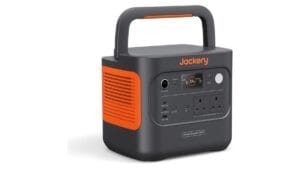 Jackery Explorer 2000 v2 Review: The Lightest Way to Carry 2kWh?
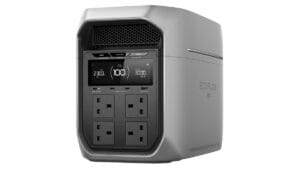 EcoFlow DELTA 3 Max Plus Review: What 2,048Wh Really Gives You
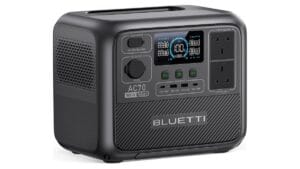 BLUETTI AC70 Review: What 2,000W Power Lifting Is Worth
Behind this guide
SGK verdicts combine hands-on testing by our team with trusted independent lab data, and we tell you the trade-offs, not only the wins.